

Overview
Coexistence mode allows you to connect a number that is already in use in the WhatsApp Business app to the WhatsApp Official API, while keeping the conversation history and the ability to keep using the app in parallel.Requirements
- Business Portfolio (BM): you need to have a business portfolio set up (verified, if possible. This gives the BM more credibility with Meta)
- Account administrator: you’ll need to have an administrator profile on the business account and on Facebook
- Have the number in the WhatsApp Business app: to use this connection method, the number needs to be connected in the WhatsApp Business app
- Have access to the number in the app: to complete the connection, you need access to the business number in the app, since you’ll receive a code from Meta and will also need to scan a QR Code
Important information
- Eligible number: not all numbers will be eligible for connection, as Meta evaluates the usage history in the WhatsApp Business app. If you try to connect and Meta returns an eligibility-related error, you’ll need to keep using the number for a while longer before trying to connect again
- Message templates are billed: when you send a message template, you’ll be billed according to the billing rules defined by the Official API
- WhatsApp Desktop for Windows is not compatible: after connecting through the Official API, messages sent and received via WhatsApp Desktop will stop working
- You must keep using the WhatsApp Business app: even while using the Official API, it’s extremely important to keep accessing the WhatsApp Business app at least once every 15 days. This is necessary because Meta may remove the link with the Official API otherwise
- Use of WhatsApp Web: after connecting to the Official API, your device will be disconnected from WhatsApp Web. You can reconnect afterward to use it again
Adding a number through Meta
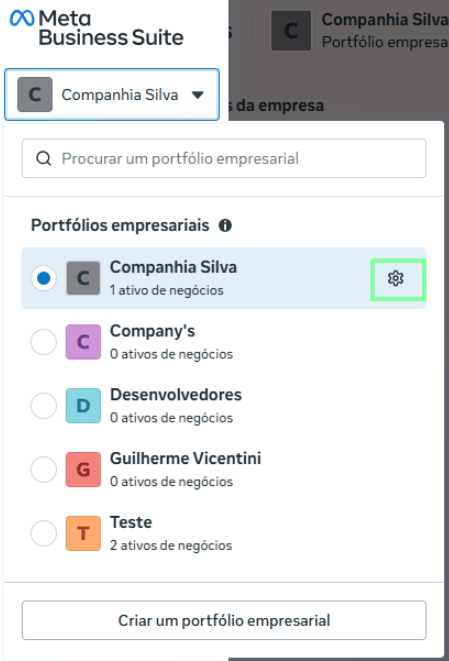
Step 1 - Access the Business Portfolio (BM)
- Go to: business.facebook.com
- Click the gear icon for the relevant Portfolio
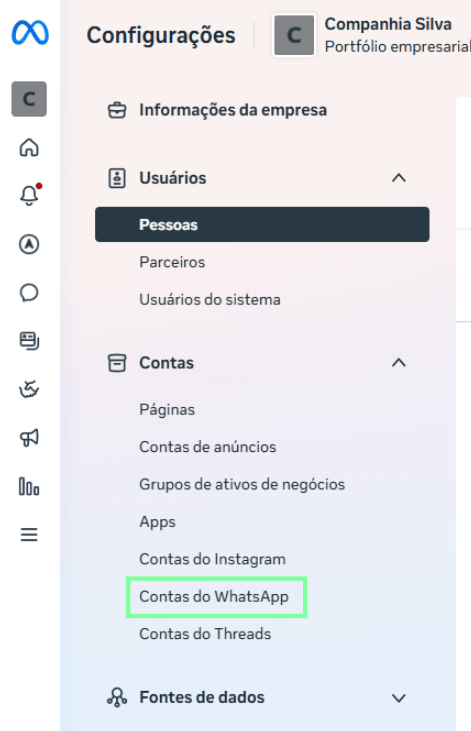
Step 2 - Access the WABA (Business Account) screen
- Click “WhatsApp Accounts”
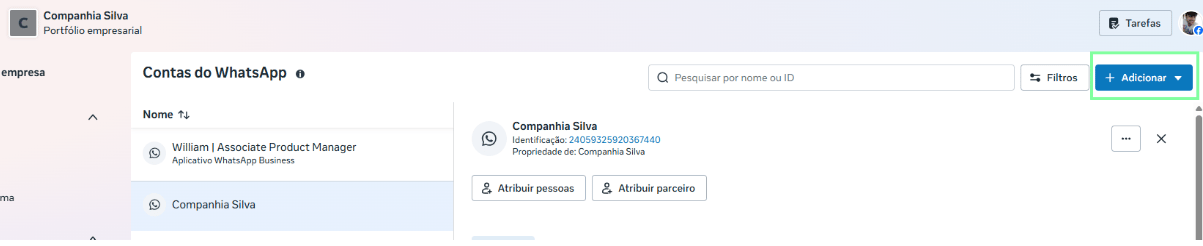
Step 3 - Add a new WABA and a new number
You can add a WABA directly through Meta.- Click the Add button
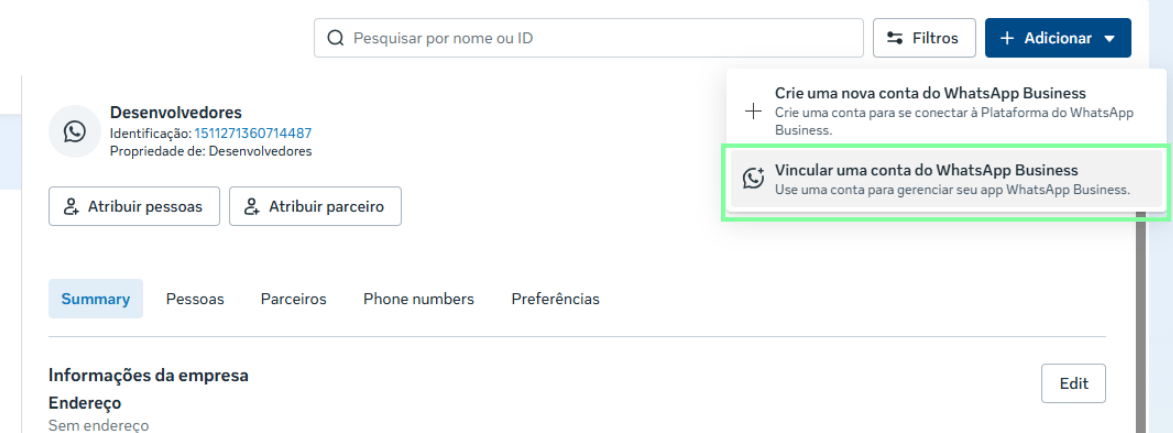
- Click the Link a WhatsApp Business account option
Step 4 - Add a number
- Add the business number you want to link to this WhatsApp account in your portfolio
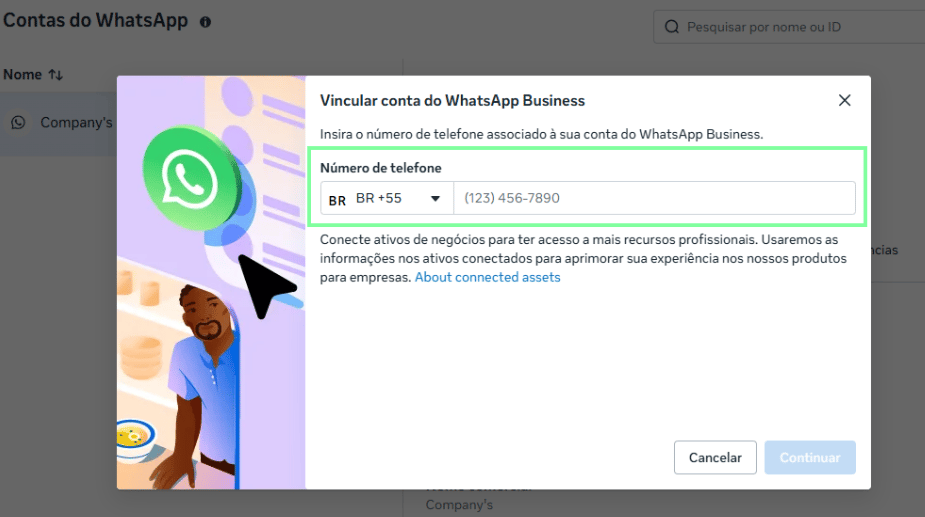
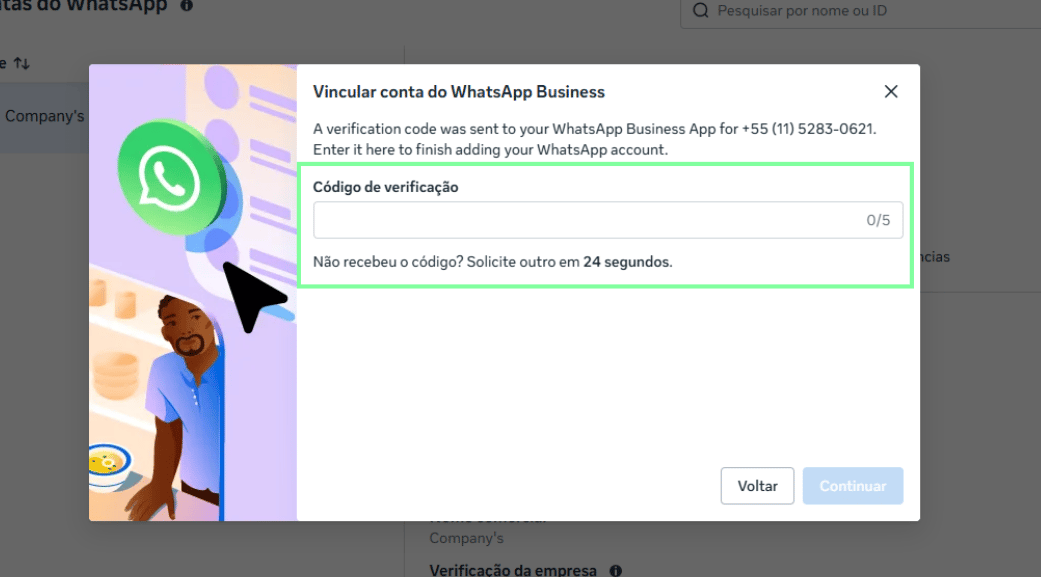
Step 5 - Validate the code
- You’ll receive a code on your WhatsApp
- Enter the code and then click Continue
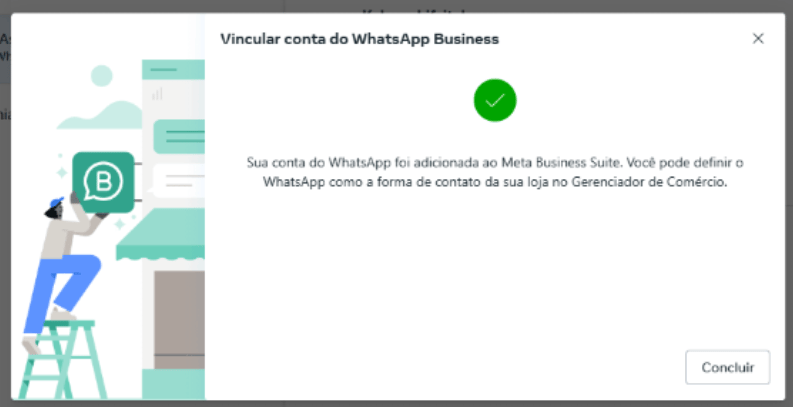
Step 6 - Business number added on Meta
- After validating the number, a window will appear letting you know your number has been added to your WhatsApp account in the respective Business Portfolio (BM)
Step 7 - Connection in Hub Message
After adding the number through Meta, you’ll be able to connect it to the Official API through Hub Message.This same process could also have been done directly through the SDK. This is just one of the ways to add a number. We recommend doing everything directly through Hub Message, since your number will already be connected once the process is finished.