

Overview
After creating your Business Portfolio, you need to verify it to unlock all the features of the WhatsApp Official API. This guide walks you through the full verification process.Step 1: Go to the site
Go to: business.facebook.com After accessing the site in the relevant portfolio, go to the WhatsApp Accounts menu screen.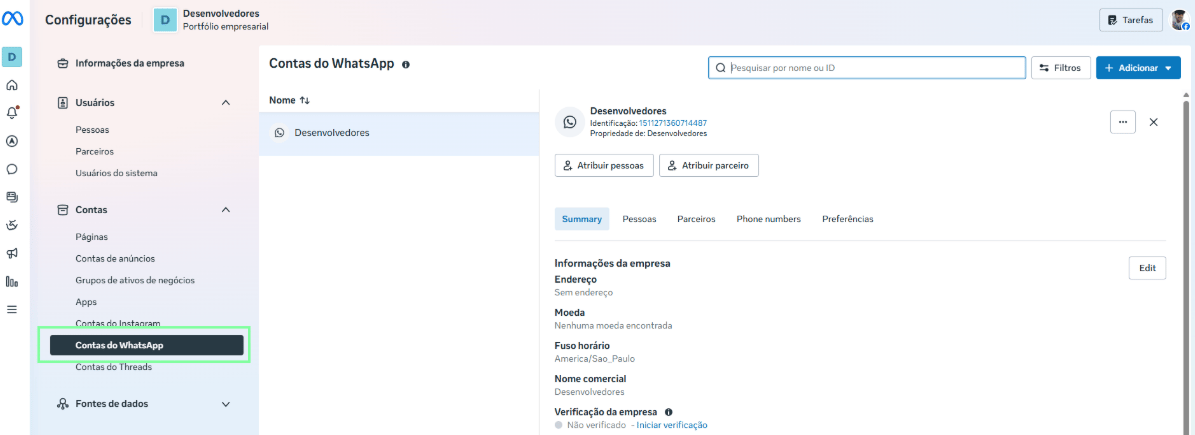
Step 2: Access the screen to start the review
Click Security Center.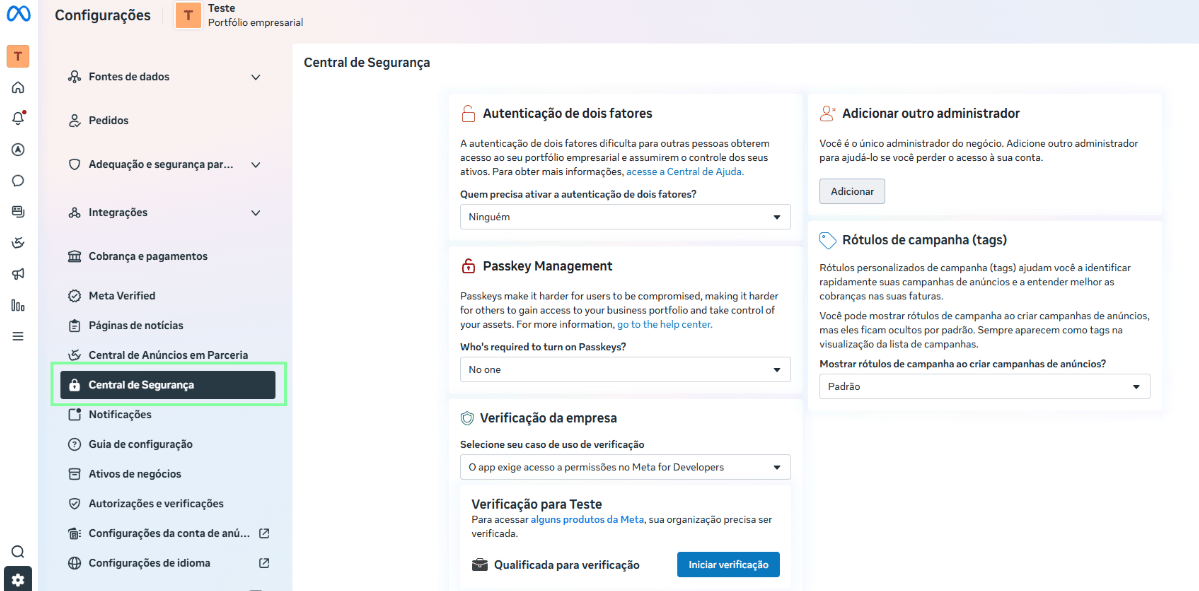
Step 3: Select the verification use case
Before starting verification, choose the Set up a WhatsApp Business account use case.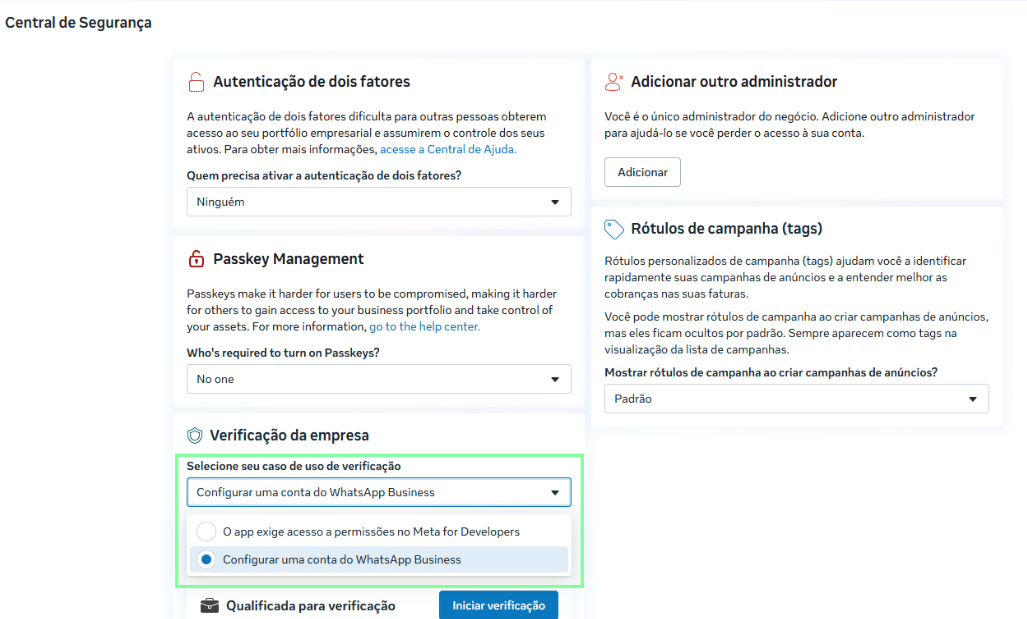
Step 4: Start verification
After choosing a use case, click Start verification.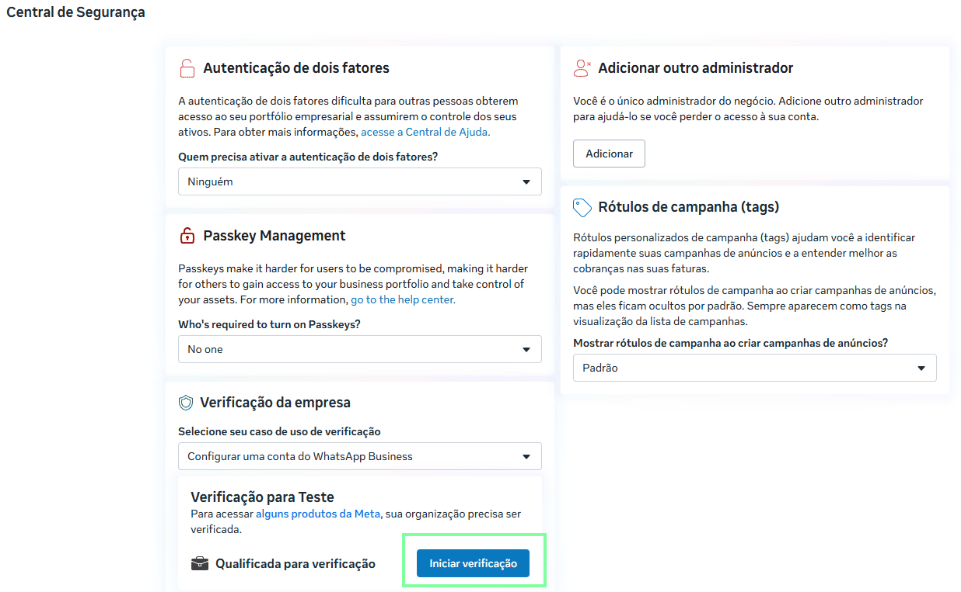
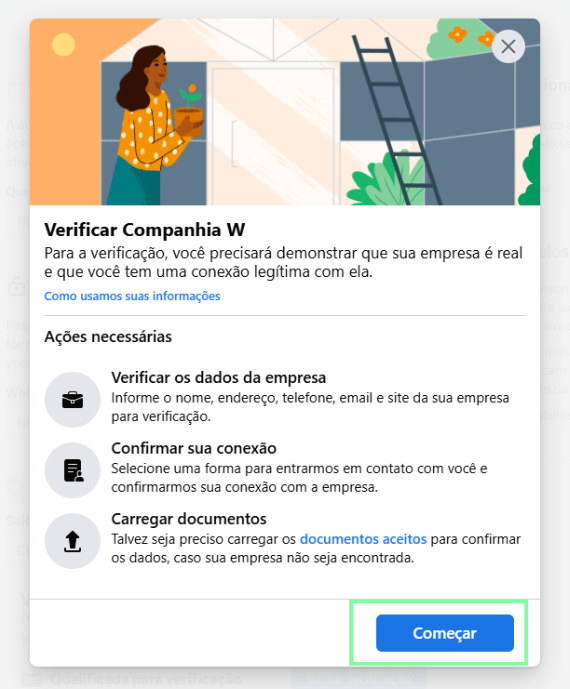
Step 5: Fill in the business information
- Set which country the business is located in
- Set the business type (Corporation, sole proprietorship, partnership, etc.)
- Indicate whether your business has a legal registration
- For Brazilian businesses, provide a valid CNPJ
- Enter the business’s legal name as registered
- Enter the business’s valid address
- Enter a valid business contact phone number
- Enter the business’s official website
Step 6: If Meta can’t find the business registration
If Meta can’t find a registration for the business, it will ask you to upload documents proving the business exists. Before that, though, it will ask you to select a way to confirm your connection to the business.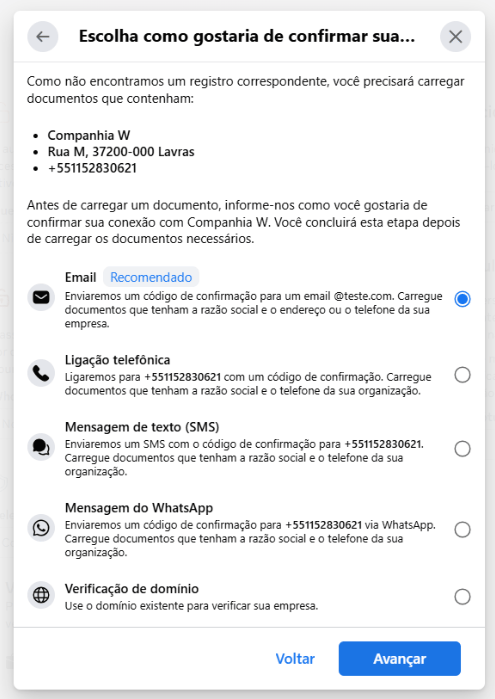
Step 7: Upload documents
You’ll need to submit a document proving the business actually exists. Verify the business’s legal name: some documents are recommended: Articles of Incorporation, National Registry of Legal Entities (CNPJ) document, and Individual Micro-Entrepreneur (MEI) certificate.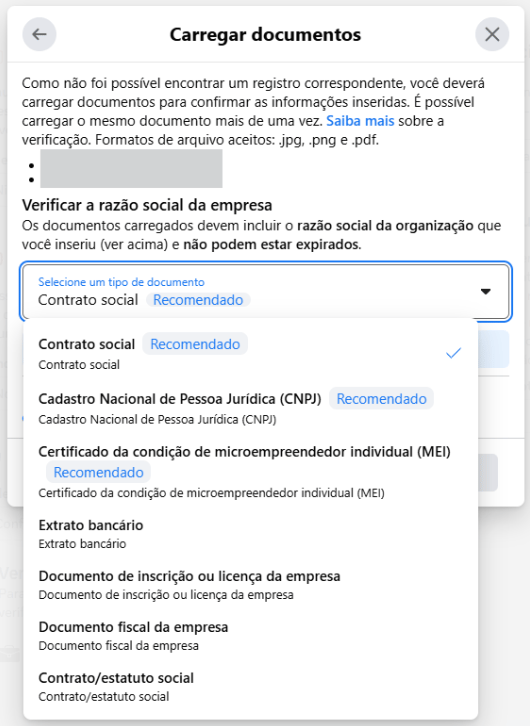
Step 8: Track your request
After going through all these steps requested by Meta, you’ll need to track the progress of the verification. This can be done directly within the Security Center section.- This process can take a few days
- If Meta has any pending items, it will send a notification with instructions on how to proceed (if your request is rejected, review the points Meta raised and try again)
Important notes:
- Submit official documents that are legible and good quality, as this makes it easier for Meta to review
- The business information needs to be correct and up to date