> ## Documentation Index
> Fetch the complete documentation index at: https://developer.hubmessage.io/llms.txt
> Use this file to discover all available pages before exploring further.
# Verify portfolio
> Learn how to verify your Business Portfolio in Meta Business Manager
export const frontendUrl = 'https://app.hubmessage.io';
export const projectName = 'Hub Message';
## Overview
After creating your **Business Portfolio**, you need to verify it to unlock all the features of the **WhatsApp Official API**. This guide walks you through the full verification process.
## Step 1: Go to the site
Go to: [business.facebook.com](https://business.facebook.com/)
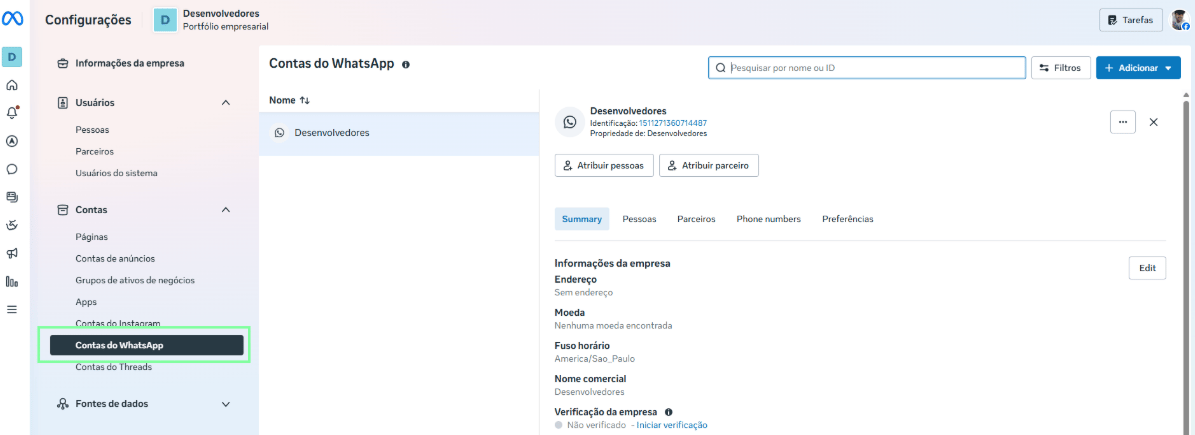
After accessing the site in the relevant portfolio, go to the **WhatsApp Accounts** menu screen.
 ## Step 2: Access the screen to start the review
Click **Security Center**.
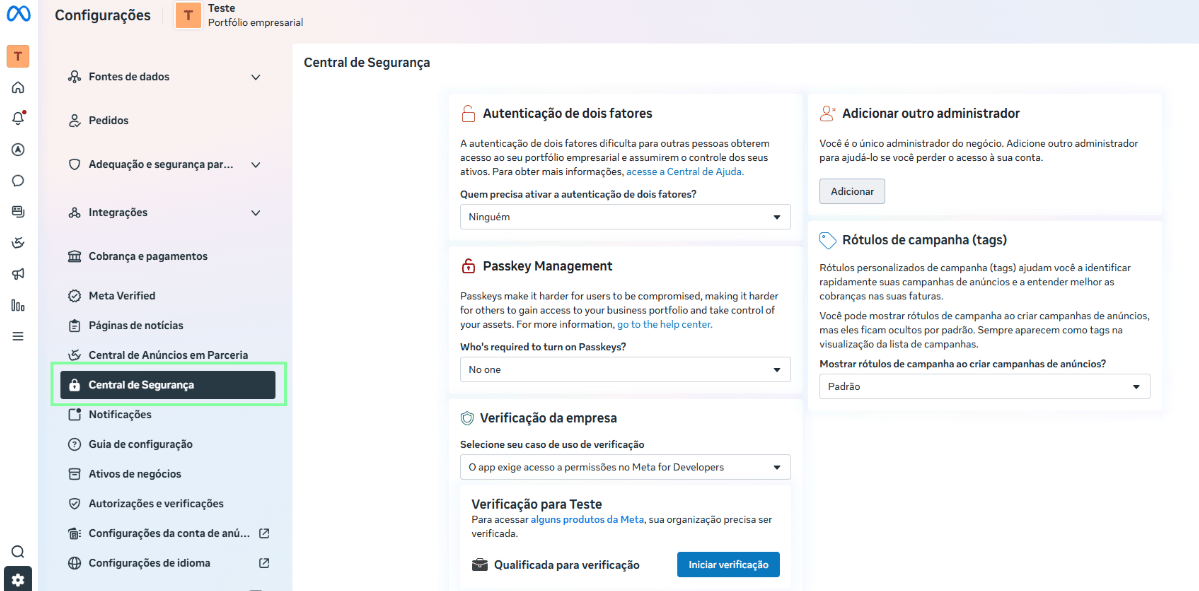
## Step 2: Access the screen to start the review
Click **Security Center**.
 ## Step 3: Select the verification use case
Before starting verification, choose the **Set up a WhatsApp Business account** use case.
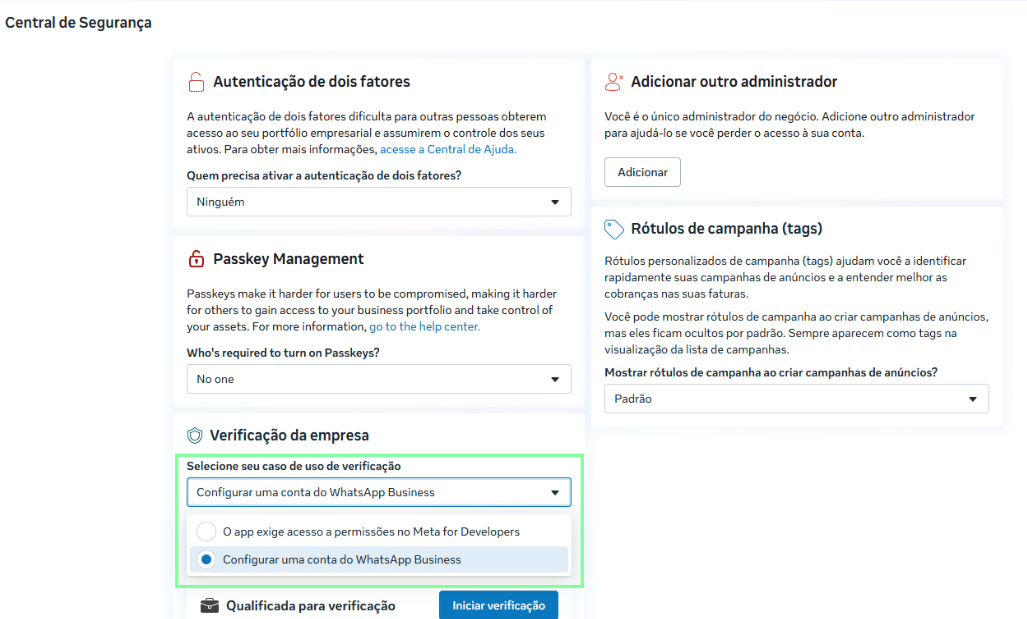
## Step 3: Select the verification use case
Before starting verification, choose the **Set up a WhatsApp Business account** use case.
 ## Step 4: Start verification
After choosing a use case, click **Start verification**.
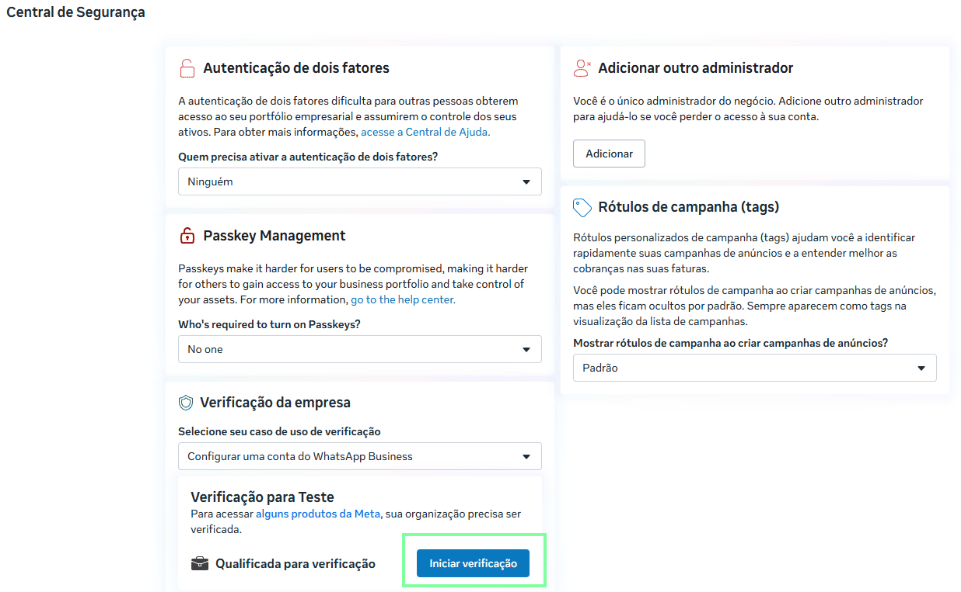
## Step 4: Start verification
After choosing a use case, click **Start verification**.
 After that, a modal will open. Click **Start**.
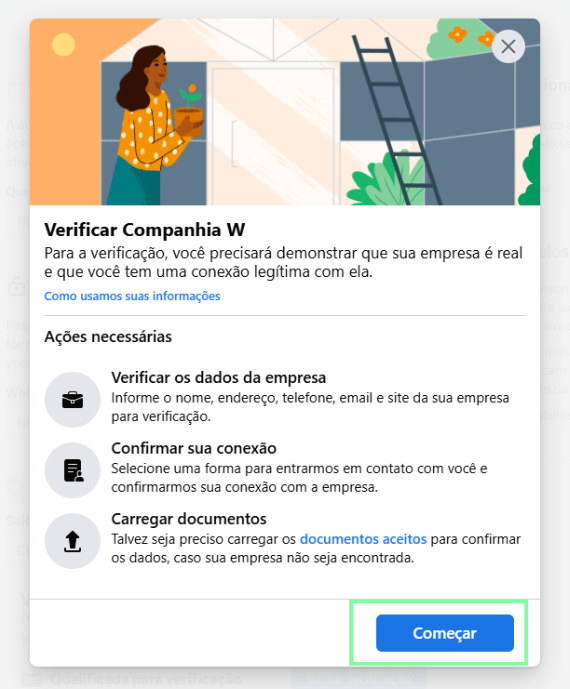 ## Step 5: Fill in the business information
* Set which country the business is located in
* Set the business type (Corporation, sole proprietorship, partnership, etc.)
* Indicate whether your business has a legal registration
* For Brazilian businesses, provide a valid CNPJ
* Enter the business's legal name as registered
* Enter the business's valid address
* Enter a valid business contact phone number
* Enter the business's official website
## Step 6: If Meta can't find the business registration
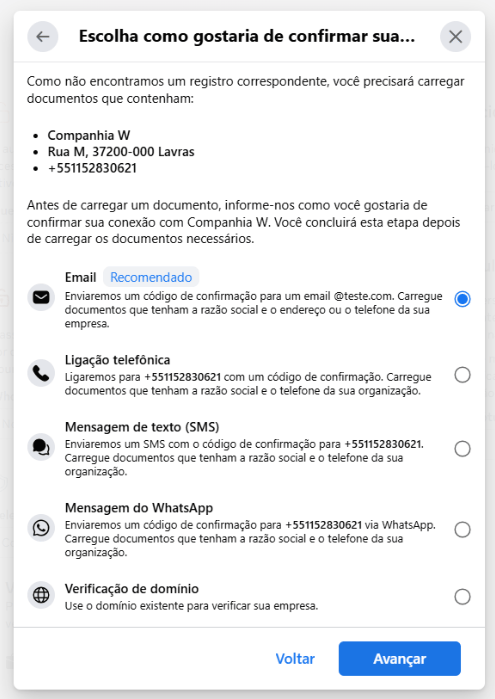
If Meta can't find a registration for the business, it will ask you to upload documents proving the business exists. Before that, though, it will ask you to select a way to confirm your connection to the business.
## Step 5: Fill in the business information
* Set which country the business is located in
* Set the business type (Corporation, sole proprietorship, partnership, etc.)
* Indicate whether your business has a legal registration
* For Brazilian businesses, provide a valid CNPJ
* Enter the business's legal name as registered
* Enter the business's valid address
* Enter a valid business contact phone number
* Enter the business's official website
## Step 6: If Meta can't find the business registration
If Meta can't find a registration for the business, it will ask you to upload documents proving the business exists. Before that, though, it will ask you to select a way to confirm your connection to the business.
 ## Step 7: Upload documents
You'll need to submit a document proving the business actually exists.
**Verify the business's legal name**: some documents are recommended: Articles of Incorporation, National Registry of Legal Entities (CNPJ) document, and Individual Micro-Entrepreneur (MEI) certificate.
## Step 7: Upload documents
You'll need to submit a document proving the business actually exists.
**Verify the business's legal name**: some documents are recommended: Articles of Incorporation, National Registry of Legal Entities (CNPJ) document, and Individual Micro-Entrepreneur (MEI) certificate.
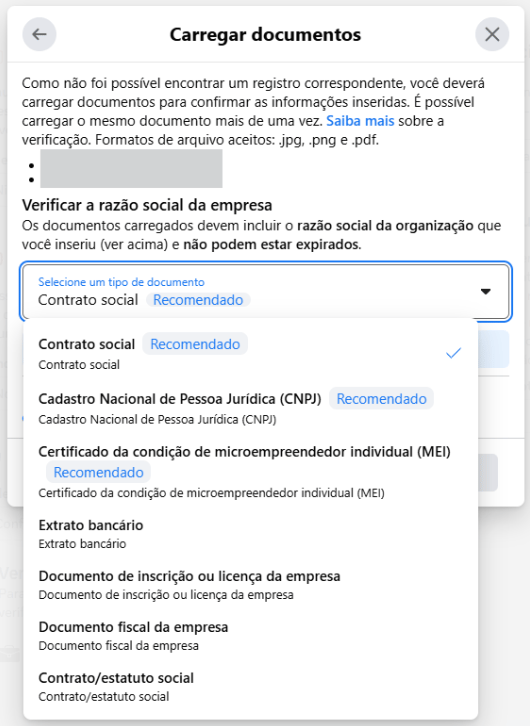 **Verify address or phone number**: it's important to submit a document that contains the business's legal name and phone number or address (it can't be expired).
## Step 8: Track your request
After going through all these steps requested by Meta, you'll need to track the progress of the verification. This can be done directly within the **Security Center** section.
* This process can take a few days
* If Meta has any pending items, it will send a notification with instructions on how to proceed (if your request is rejected, review the points Meta raised and try again)
**Important notes:**
* Submit official documents that are legible and good quality, as this makes it easier for Meta to review
* The business information needs to be correct and up to date
**Verify address or phone number**: it's important to submit a document that contains the business's legal name and phone number or address (it can't be expired).
## Step 8: Track your request
After going through all these steps requested by Meta, you'll need to track the progress of the verification. This can be done directly within the **Security Center** section.
* This process can take a few days
* If Meta has any pending items, it will send a notification with instructions on how to proceed (if your request is rejected, review the points Meta raised and try again)
**Important notes:**
* Submit official documents that are legible and good quality, as this makes it easier for Meta to review
* The business information needs to be correct and up to date