> ## Documentation Index
> Fetch the complete documentation index at: https://developer.hubmessage.io/llms.txt
> Use this file to discover all available pages before exploring further.
# Number migration
> Learn how to migrate a number from another provider to the Official API in Hub Message
export const frontendUrl = 'https://app.hubmessage.io';
export const projectName = 'Hub Message';
## Overview
This process is necessary if you're currently using another provider, since Meta only allows a single provider to be active for a given number at a time.
## Requirements
* **Business Portfolio (BM)**: you need to have a business portfolio set up with the WhatsApp number already linked
* **Number with another provider**: the number needs to be connected with another provider
## Step by step
### Step 1 - Disconnect the number from the provider
* You'll need to log in to the other provider and disconnect your number
### Step 2 - Access your Meta account
* Go to: [business.facebook.com](https://business.facebook.com/)
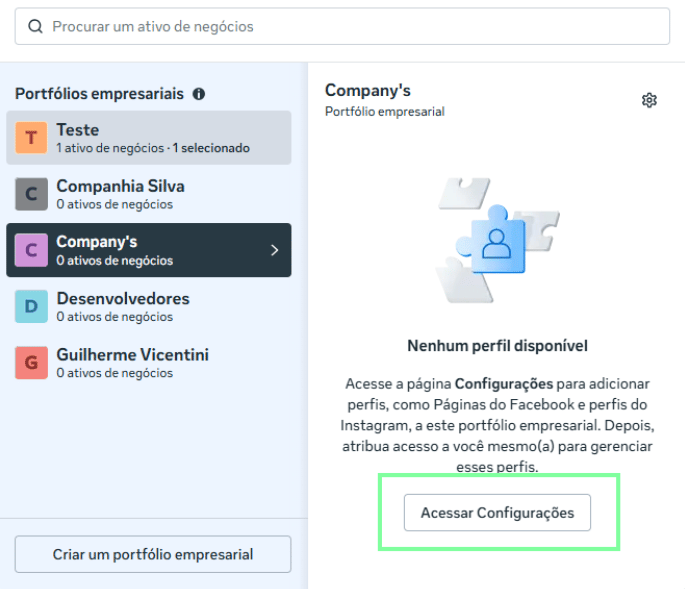
### Step 3 - Access the Portfolio settings
* Click the relevant Business Portfolio (BM)
* Click to access the BM's settings
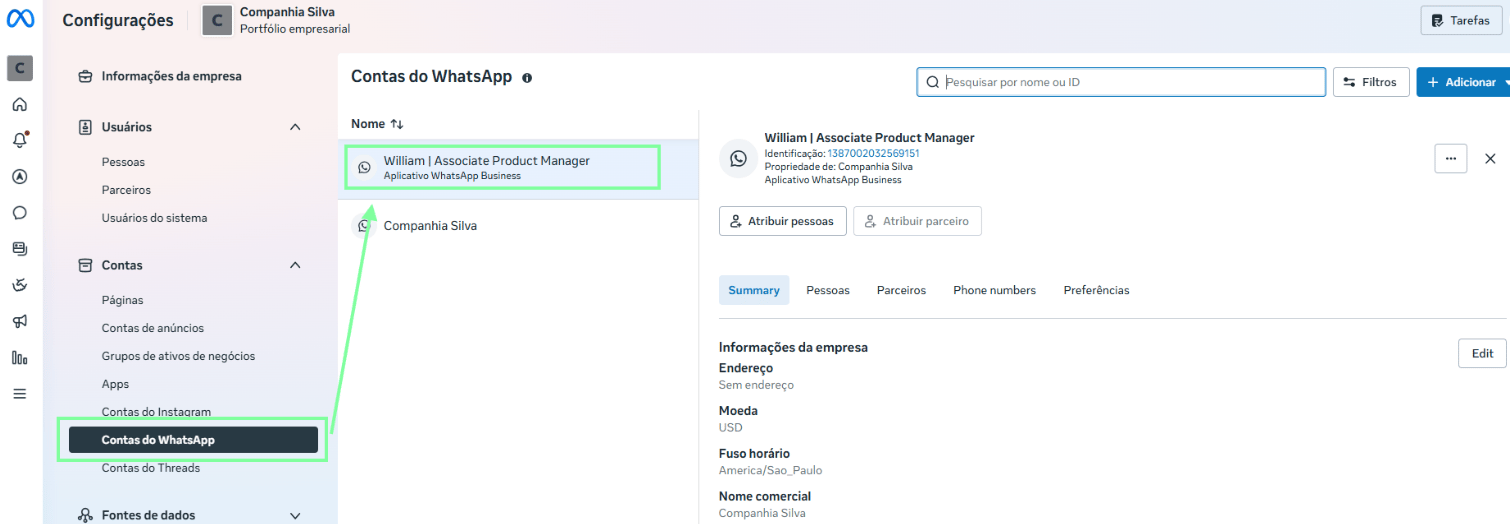
 ### Step 4 - Select the WhatsApp account
* Click **WhatsApp Accounts**
* Click the relevant account you want to remove the old provider from
### Step 4 - Select the WhatsApp account
* Click **WhatsApp Accounts**
* Click the relevant account you want to remove the old provider from
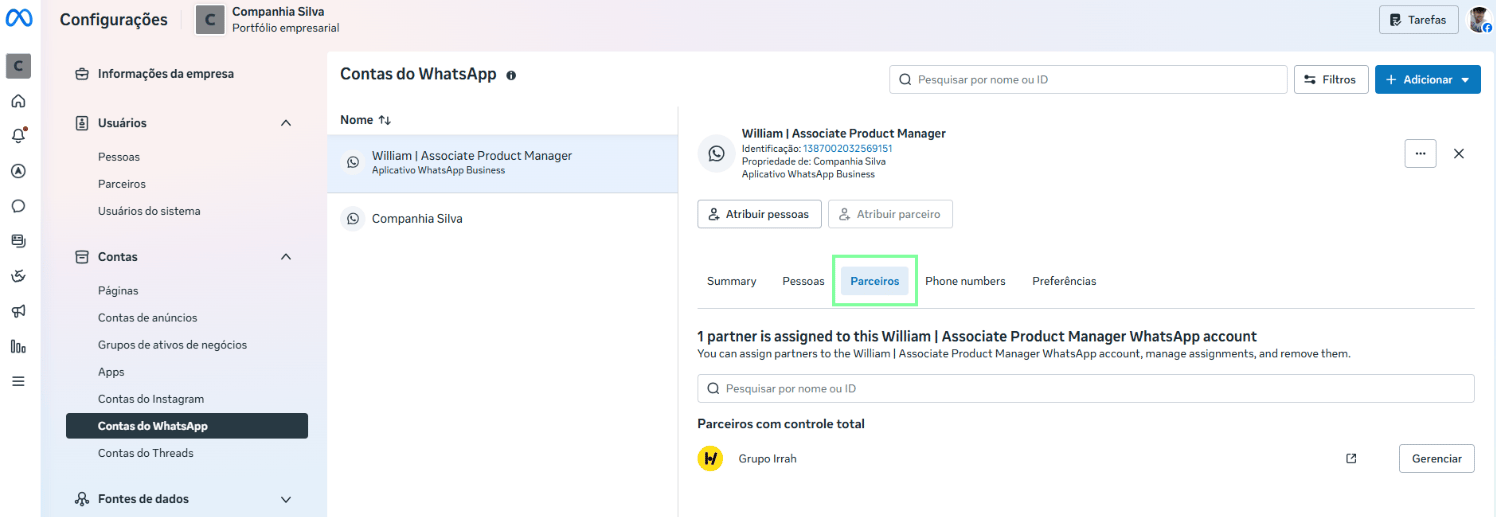
 ### Step 5 - Look for the "Partners" option
* After clicking the relevant account, click **Partners**
### Step 5 - Look for the "Partners" option
* After clicking the relevant account, click **Partners**
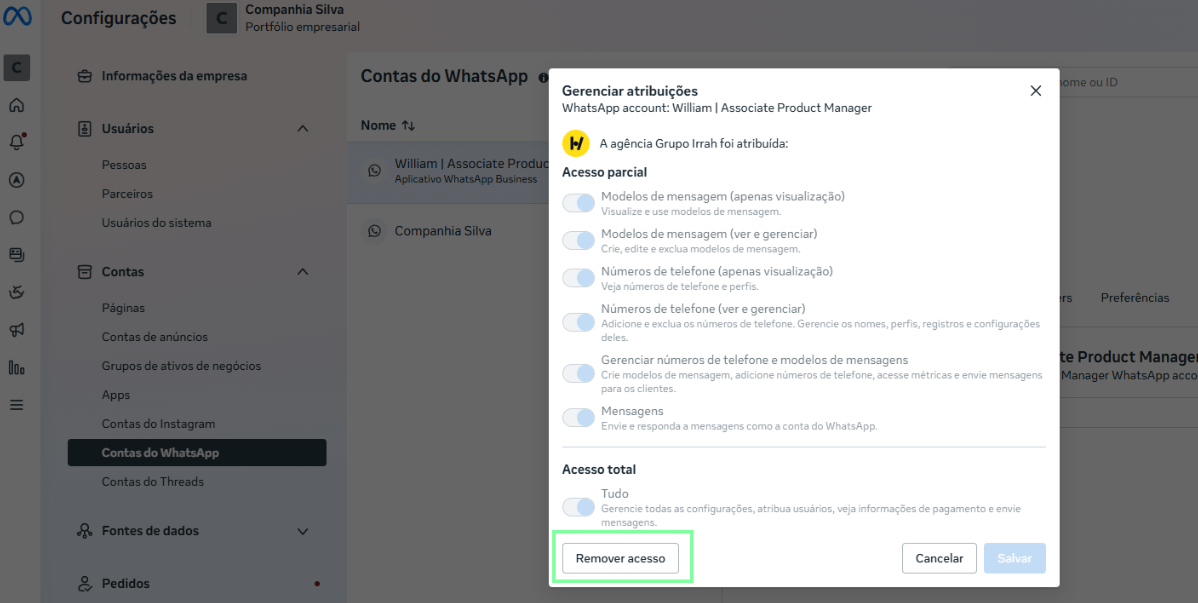
 ### Step 6 - Remove the partner's access
* Next to the provider you want to remove, click **Manage**
### Step 6 - Remove the partner's access
* Next to the provider you want to remove, click **Manage**
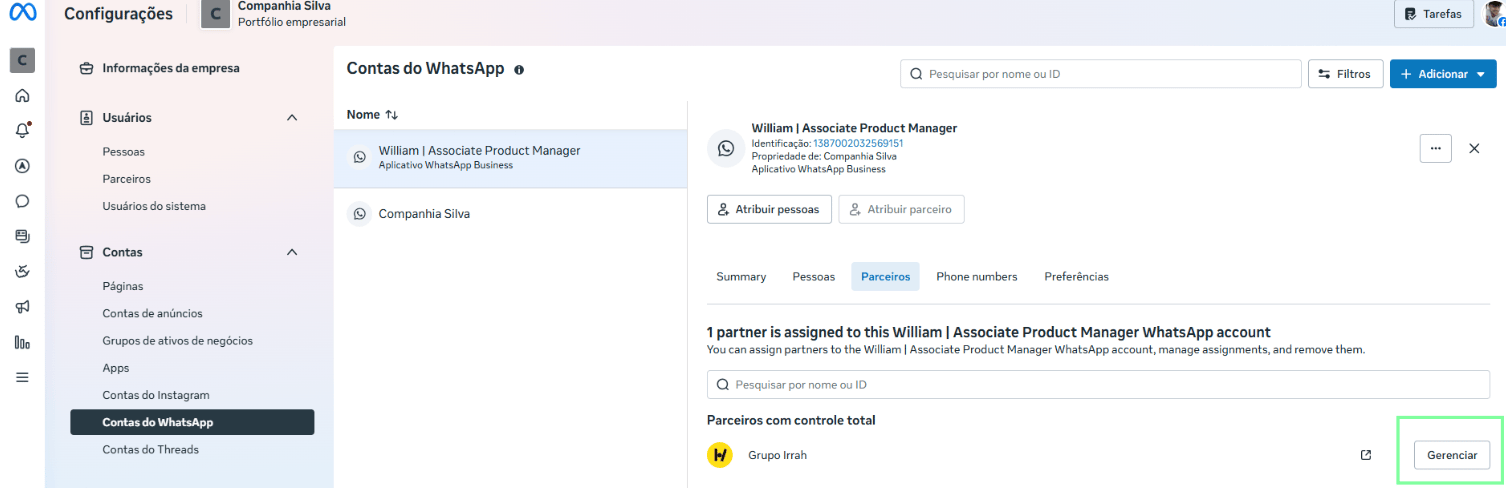 * After that, a modal will open. Click **Remove Access**
 ### Step 7 - Connection in Hub Message
After removing the old provider's access, you'll now be able to connect through {projectName}.
Make sure the number has been properly disconnected from the previous provider before starting the connection in Hub Message, to avoid conflicts during the process.
### Step 7 - Connection in Hub Message
After removing the old provider's access, you'll now be able to connect through {projectName}.
Make sure the number has been properly disconnected from the previous provider before starting the connection in Hub Message, to avoid conflicts during the process.